
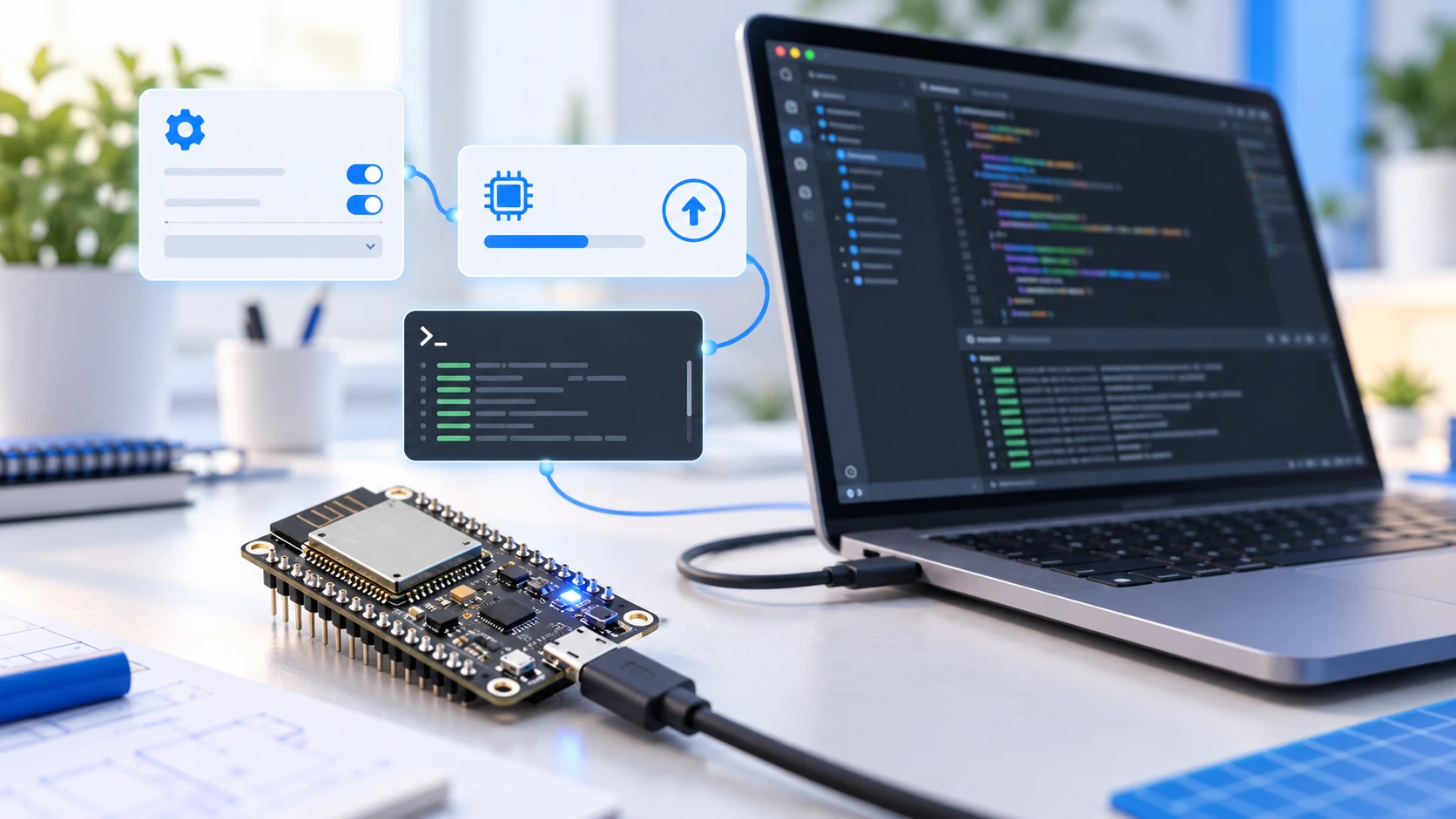
ESP32-S3 with PlatformIO from scratch
Configure the ESP32-S3 in PlatformIO: octal PSRAM with qio_opi, a silent serial monitor caused by USB-CDC and a partition table for 16 MB of flash.
Hardware requirements:
- Placa ESP32-S3 (referência: módulo N16R8)
- Cabo USB-C de dados
Download this tutorial's materials:
- Projeto completo (ZIP)112 KBProjeto base para N16R8 com três ambientes prontos, definição de placa própria, tabela de partições de 16 MB e o sketch de diagnóstico de flash, PSRAM e porta USB.
- Manual em PDF (6 páginas)134 KBO que significa N16R8, as três linhas que decidem tudo, passo a passo, tabela de problemas e checklist final.
Want to receive new manuals and industrial schematics? Join our channel on Telegram / WhatsApp
Who this guide is for
This guide starts with PlatformIO already installed in VS Code and ends with firmware running on the board, PSRAM detected and the serial monitor responding. If you have not installed PlatformIO yet, begin with the PlatformIO guide and come back here afterward.
The reference board is an ESP32-S3 N16R8 module. The differences between variants are explained below, so you can adapt the configuration without leaving this guide.
The important point is that the ESP32-S3 is not the classic ESP32 with a new name. It changes the core to a 240 MHz dual-core Xtensa LX7, completely changes the USB arrangement and adds octal PSRAM. These are exactly the three points where a configuration that worked on the old ESP32 stops working — and they are the focus of this guide.
What N16R8 means
The suffix after the module name describes the memory, and it determines half of your configuration.
N is flash: N16 means 16 MB. R is PSRAM: R8 means 8 MB. An N8R2 has 8 MB of flash and 2 MB of PSRAM, while a module without the R part has no PSRAM at all.
The detail that causes the most trouble is invisible in the suffix. In R8 variants, PSRAM is octal (OPI, eight data lines), while R2 variants are usually quad (QSPI, four lines). Declaring octal as quad makes the board reboot in a loop or silently ignore the 8 MB, without any error message.
Create the project in PlatformIO
Open PlatformIO Home in VS Code and click New Project. Give it a name, choose the Espressif ESP32-S3-DevKitC-1-N8 board and the Arduino framework.
Do not get attached to that choice. It only generates an initial platformio.ini; from then on, that file controls everything. The N16R8 variant does not appear in the default list, but it still works — you only need to adjust platformio.ini as shown below.
The platformio.ini that works on the S3
This is the complete file for an N16R8 with Arduino Core:
| 1 | [env:esp32-s3-n16r8] |
| 2 | platform = espressif32 |
| 3 | board = esp32-s3-devkitc-1 |
| 4 | framework = arduino |
| 5 | monitor_speed = 115200 |
| 6 | upload_speed = 921600 |
| 7 | board_build.mcu = esp32s3 |
| 8 | board_build.f_cpu = 240000000L |
| 9 | board_build.flash_mode = qio |
| 10 | board_build.arduino.memory_type = qio_opi |
| 11 | board_upload.flash_size = 16MB |
| 12 | board_upload.maximum_size = 16777216 |
| 13 | build_flags = |
| 14 | -DBOARD_HAS_PSRAM |
| 15 | -DARDUINO_USB_MODE=1 |
| 16 | -DARDUINO_USB_CDC_ON_BOOT=0 |
The three lines that really decide the result are memory_type, flash_size and the two USB flags. The next sections explain each one.
Octal PSRAM: the parameter almost everyone gets wrong
The board_build.arduino.memory_type line describes, in one value, how flash and PSRAM communicate with the chip. The format is flash followed by PSRAM.
The value qio_opi means flash in QIO and PSRAM in OPI, the correct combination for an N16R8. A board with quad PSRAM would use qio_qspi, and a module without PSRAM would use qio alone.
Declaring memory_type is not enough: Arduino Core also needs the -DBOARD_HAS_PSRAM flag to expose the memory to your code. Without it, PSRAM may be initialized, but allocation functions continue to use only internal RAM.
It is worth understanding what is at stake. The S3's internal RAM has about 320 KB available. PSRAM adds 8 MB. That is the difference between being unable to assemble an image buffer and having room to work.
Confirm that PSRAM was detected
Never assume it worked just because the project compiled. Flash this test and read the serial output:
| 1 | void setup() { |
| 2 | Serial.begin(115200); |
| 3 | delay(1000); |
| 4 | Serial.printf("Flash : %u bytes\\n", ESP.getFlashChipSize()); |
| 5 | Serial.printf("PSRAM : %u bytes\\n", ESP.getPsramSize()); |
| 6 | Serial.printf("Heap : %u bytes\\n", ESP.getHeapSize()); |
| 7 | if (!psramFound()) { |
| 8 | Serial.println("PSRAM NAO encontrada"); |
| 9 | Serial.println("Revise memory_type e a flag BOARD_HAS_PSRAM"); |
| 10 | } |
| 11 | } |
| 12 | void loop() {} |
On a correctly configured N16R8, flash reports 16777216 bytes and PSRAM reports 8388608 bytes. If PSRAM reports zero, the problem is memory_type or the flag, not the board.
Why the serial monitor is silent on the S3
This is the most common question, and it has nothing to do with your code.
The ESP32-S3 has native USB. That is why most development kits have two USB-C ports: one marked UART, which passes through a traditional serial converter, and another marked USB, connected directly to the chip. Both can flash firmware. Only one delivers Serial, and which one depends on a flag.
With ARDUINO_USB_CDC_ON_BOOT=0, the value in the example above, the Serial object is connected to UART0. You must connect the monitor to the port marked UART. If you plug into the native USB port, the firmware runs perfectly and the monitor stays blank forever.
With ARDUINO_USB_CDC_ON_BOOT=1, Serial is routed through the native USB port. This is more convenient because one cable does everything, but it has a side effect: after each upload the port disappears and reappears in the operating system, and the first messages are lost during that interval. That is why the previous example waits one second at the beginning of setup.
If the monitor is silent, change the physical port before touching the code. It solves most cases.
Make use of the 16 MB flash
The default partition table was designed for 4 MB modules. Using it on an N16R8 wastes more than two thirds of the chip, while the compiler complains that the sketch is too large with 12 MB sitting unused.
Create a file named partitions.csv at the project root:
| 1 | # Name, Type, SubType, Offset, Size, Flags |
| 2 | nvs, data, nvs, 0x9000, 0x5000, |
| 3 | otadata, data, ota, 0xe000, 0x2000, |
| 4 | app0, app, ota_0, 0x10000, 0x300000, |
| 5 | app1, app, ota_1, , 0x300000, |
| 6 | spiffs, data, spiffs, , 0x900000, |
Point to it in platformio.ini with the line board_build.partitions = partitions.csv.
This layout reserves two 3 MB application slots, which is required for OTA updates: new firmware is written to the free slot while the current firmware keeps running, and the switch happens only if the write finishes intact. The remaining 9 MB are left for SPIFFS, configuration files, web pages or local records.
If you do not plan to use OTA, one 6 MB application slot and more data space is also valid. The important thing is not to leave the 4 MB table on a 16 MB board.
When to create your own board definition
Repeating ten board_build lines in every new project gets tiring and invites errors. The alternative is to register the board once.
Create a boards folder at the project root and put a JSON file named after your board inside it:
| 1 | { |
| 2 | "build": { |
| 3 | "arduino": { |
| 4 | "ldscript": "esp32s3_out.ld", |
| 5 | "memory_type": "qio_opi", |
| 6 | "partitions": "default_16MB.csv" |
| 7 | }, |
| 8 | "core": "esp32", |
| 9 | "extra_flags": [ |
| 10 | "-DBOARD_HAS_PSRAM", |
| 11 | "-DARDUINO_USB_MODE=1", |
| 12 | "-DARDUINO_USB_CDC_ON_BOOT=0" |
| 13 | ], |
| 14 | "f_cpu": "240000000L", |
| 15 | "f_flash": "80000000L", |
| 16 | "flash_mode": "qio", |
| 17 | "mcu": "esp32s3", |
| 18 | "variant": "esp32_s3r8n16" |
| 19 | }, |
| 20 | "frameworks": ["arduino", "espidf"], |
| 21 | "name": "ESP32-S3 N16R8", |
| 22 | "upload": { |
| 23 | "flash_size": "16MB", |
| 24 | "maximum_ram_size": 327680, |
| 25 | "maximum_size": 16777216, |
| 26 | "speed": 921600 |
| 27 | } |
| 28 | } |
Saved as esp32s3_n16r8.json, the entire platformio.ini shrinks to board = esp32s3_n16r8 plus the framework. PlatformIO looks in the project's boards folder before looking at official boards, so the definition travels with the repository and the next developer can compile without configuring anything.
Common ESP32-S3 errors and solutions
The board reboots in a loop immediately after flashing. It is almost always a memory_type mismatch with the physical PSRAM. Confirm whether your module is R8 (octal, qio_opi) or R2 (quad, qio_qspi).
The serial monitor shows nothing. Change the USB port before anything else, as explained above. If it persists, check that monitor_speed in platformio.ini matches the Serial.begin value.
A fatal error occurred: Failed to connect to ESP32-S3. Hold BOOT, tap RESET, release BOOT and flash again. This forces flashing mode.
Flashing fails halfway or corrupts data. An upload_speed of 921600 is aggressive for long or poor-quality cables. Lower it to 460800 and test.
Sketch too big, even with 16 MB. The partition table is still the 4 MB table. Apply the partitions.csv from the previous section.
PSRAM appears as zero. The -DBOARD_HAS_PSRAM flag is missing, or memory_type is wrong. Run this page's diagnostic test before changing the rest of the project.